AI photo layer editor: change one thing in a finished thumbnail by naming it.
By the Vwrap team · Updated September 8, 2026
Vwrap's editor opens a thumbnail you generated here and runs object detection over it, listing what it found as selectable layers: Person 1, Text 2, Element 1. Pick one, choose a tool, and the model returns a new frame with that layer changed. There is no mask to paint and no lasso to draw, and no layer you had to set up in advance. Most edits cost 15 credits, an upscale 10, and retyping the headline nothing at all.
How to edit one layer of a finished thumbnail
Open a thumbnail in the editor
Two doors, both from inside Vwrap. The result view after a generation carries an Edit button that takes the variant you were looking at through to the editor, and any card in your library opens there on a click. The editor addresses a thumbnail by the id of the run that produced it, so what it can open is what Vwrap made. You can attach an image to an edit once you are inside, but you cannot open one as the thing being edited.
Let it work out what is in the frame
Detection starts on its own when the editor opens, and the Layers button shows you what came back: a labelled box around each thing it found. Labels are generic and sequential (Person 1, Person 2, Text 1) because they mark positions in the frame rather than describing who anyone is. Detection is not charged, and its result is cached against the thumbnail, so reopening the same image does not run it again.
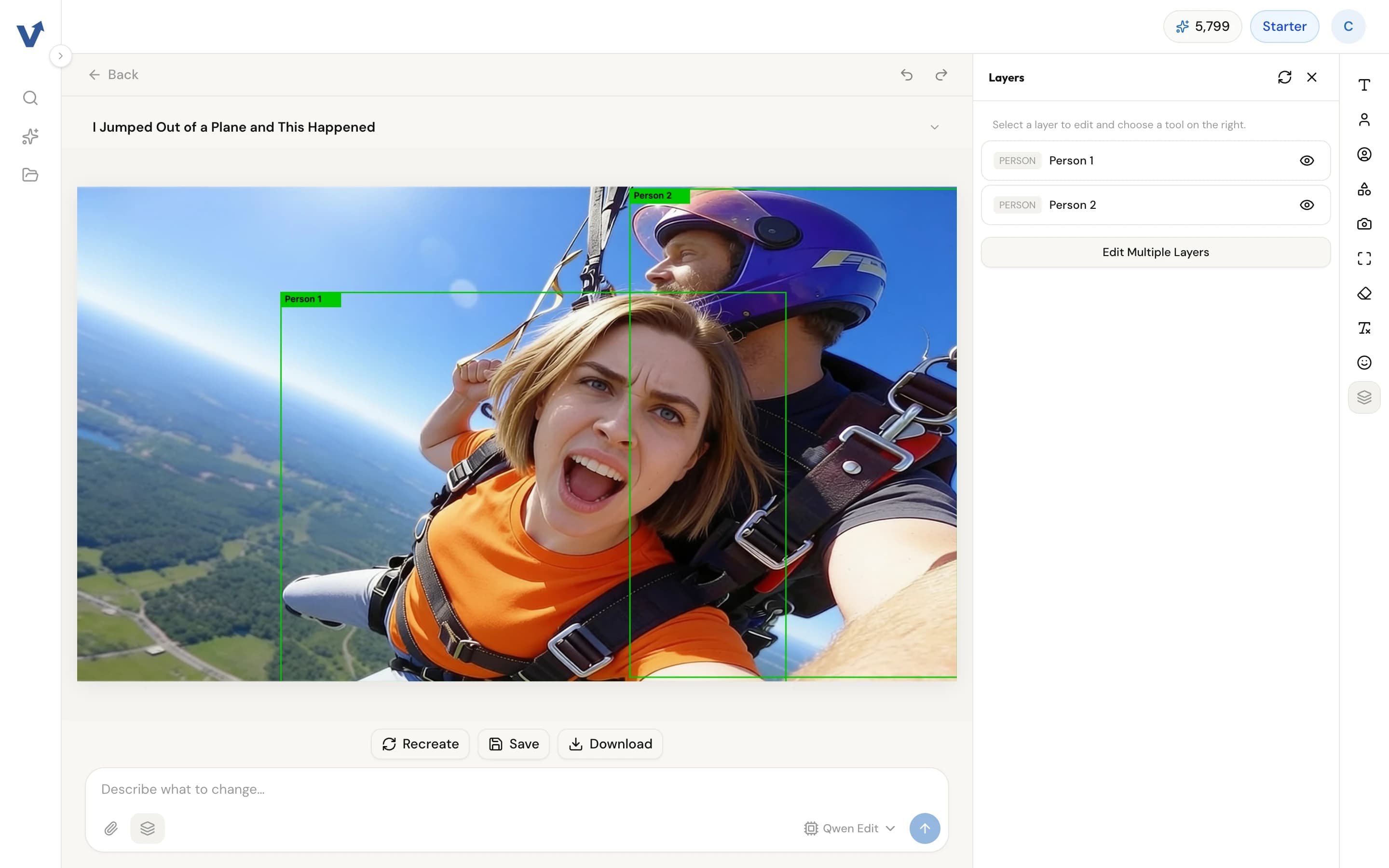
Detection over a thumbnail already in the library. Each row of the Layers panel maps to one box on the canvas, and the eye icon hides a box while you work on another. Select a layer, then pick a tool
The toolbar dims whatever does not apply to your selection. Camera Angles, Expression and Replace Person want a person. Replace Element wants an element that is neither a person nor text. Remove Layer takes either of those, and the text tool wants a text layer. Hover a dimmed button and the tooltip names the type it needs. Upscale and Remove Text stay available whatever is selected.
Apply it, then keep it or undo it
Each panel prints its price before you commit: 15 credits for most tools, 10 for an upscale. The finished frame lands on the canvas and detection re-runs on it, since the layers just changed. Undo and redo step back and forward through edits, and Download writes a 1280 by 720 PNG straight out of the canvas without touching the backend.
What detection gives you
A list of boxes, each carrying a type and a generic label. Three types exist (person, text and element), and there is no separate face category, so the face-and-head mode of Replace Person works on a person layer like everything else. A cheap vision pass sorts what is in the frame into those three, then a dedicated object detector locates each one against a short list of terms, with a second detector and the vision pass itself behind it if that call fails.
The list is filtered before it reaches you. Overlapping boxes are merged, anything under half a percent of the image area is dropped as noise, and the panel is capped at eight rows so it stays readable. Boxes are padded a little, persons most, because vision models clip hair and hands. What comes back is best-effort detection rather than an inventory: a busy frame can leave a prop unlisted, and the refresh button re-runs detection on whatever is on the canvas now.
How an edit finds its layer
By describing where it sits. The box you selected becomes a phrase, such as the person on the left side or the object in the centre, and that phrase travels to the model alongside the whole image. Camera angles send the coordinates as well, because the model latches onto the words more reliably than onto the numbers. Nothing is cut out and nothing is pasted back. The image that comes back is the image that gets stored.
So the edit is scoped by identification rather than by pixels, and the boundary runs here: it lands on the layer you named, and the frame around it is re-rendered. We measured that twice on production in September 2026, on the thumbnail below. A camera angle and then an expression were applied to the woman on the left, and each left the man on the right with his pose, gaze and clothing as they were.
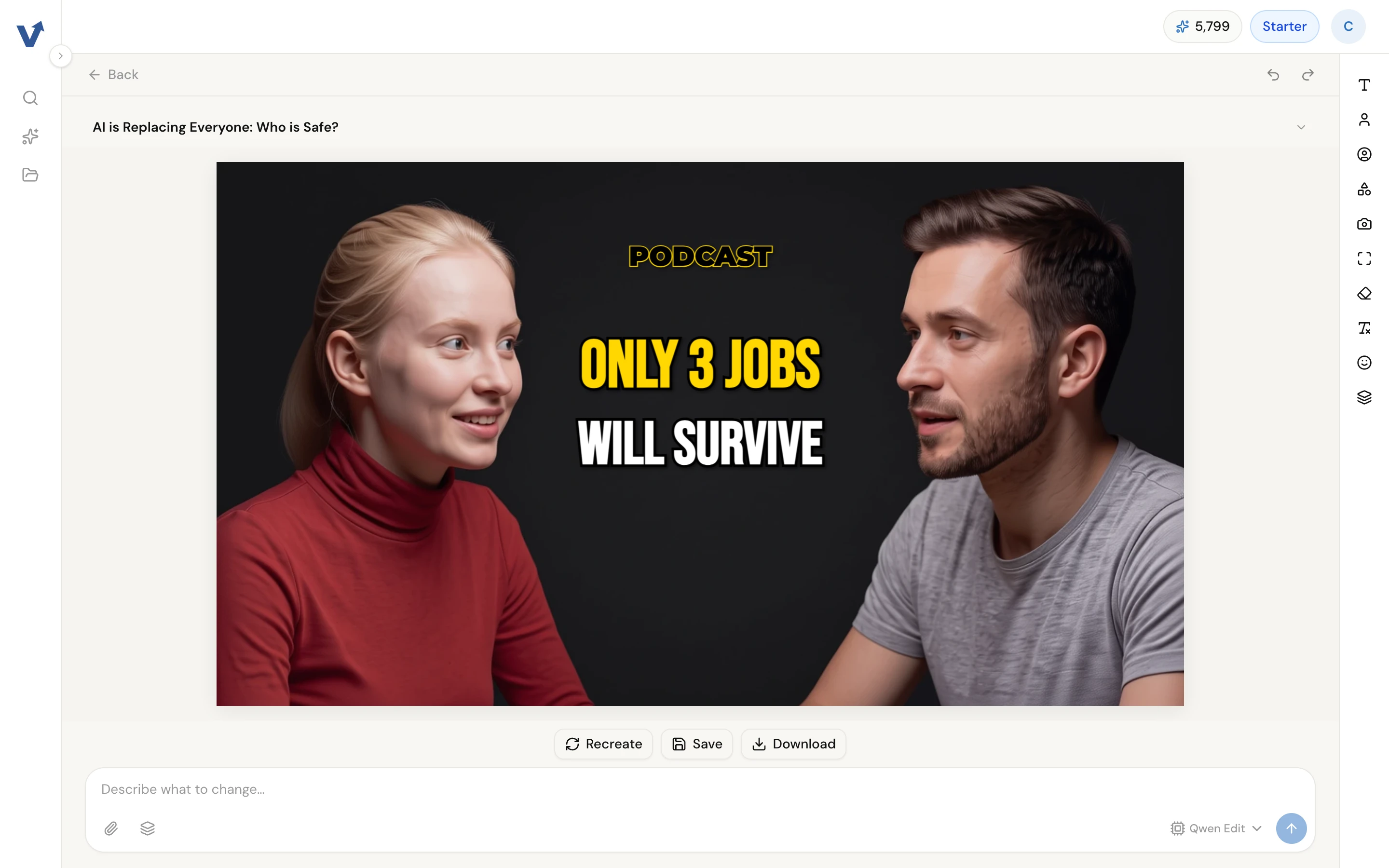
The source both edits below started from. Person 1 is the woman on the left, Person 2 the man on the right, with the headline stack in the gap between them.
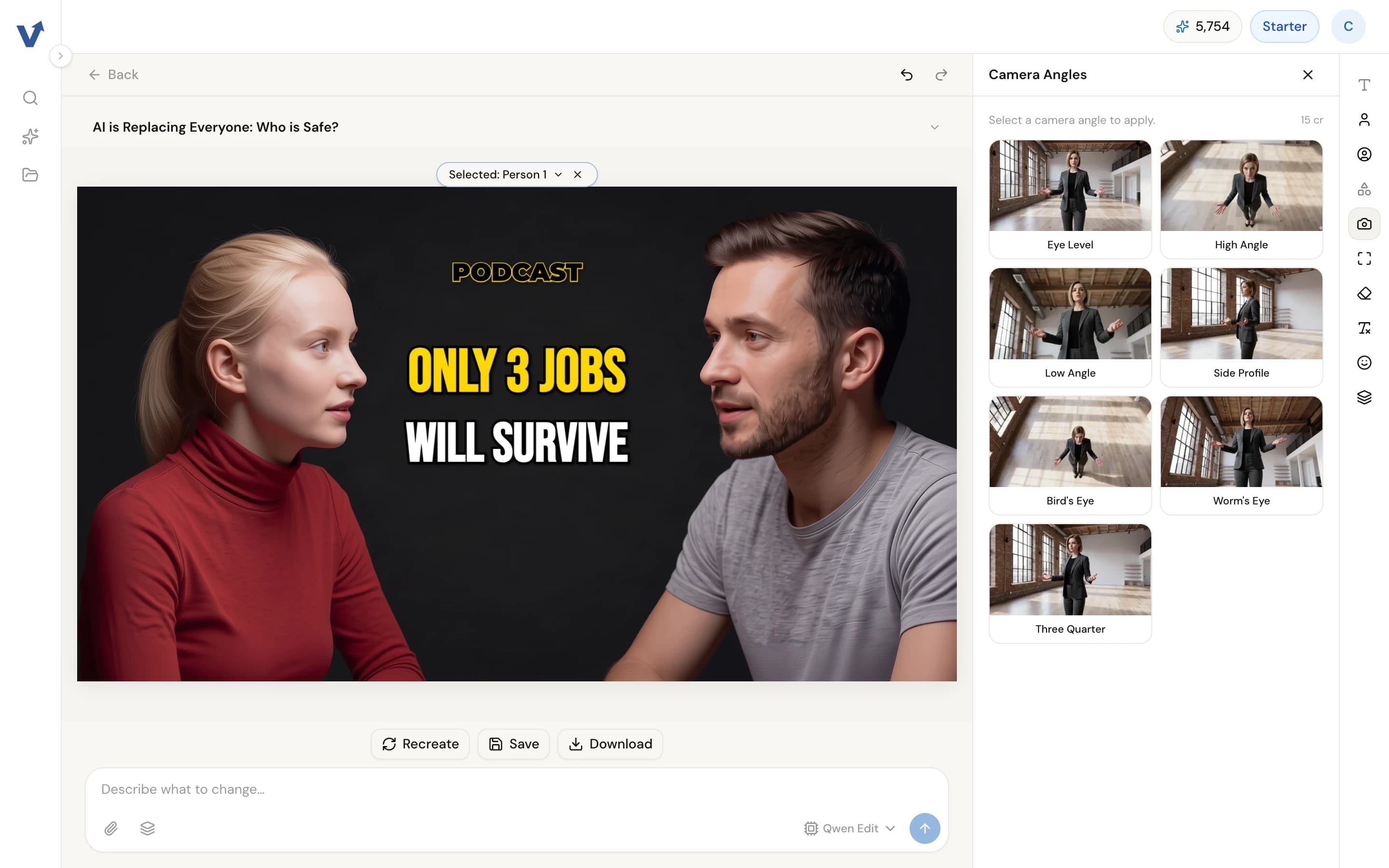
Camera Angles, Three Quarter, applied to Person 1. She turns to a near-profile orientation while the man holds his pose and gaze, and the headline stack is unchanged. Billed 15 credits.
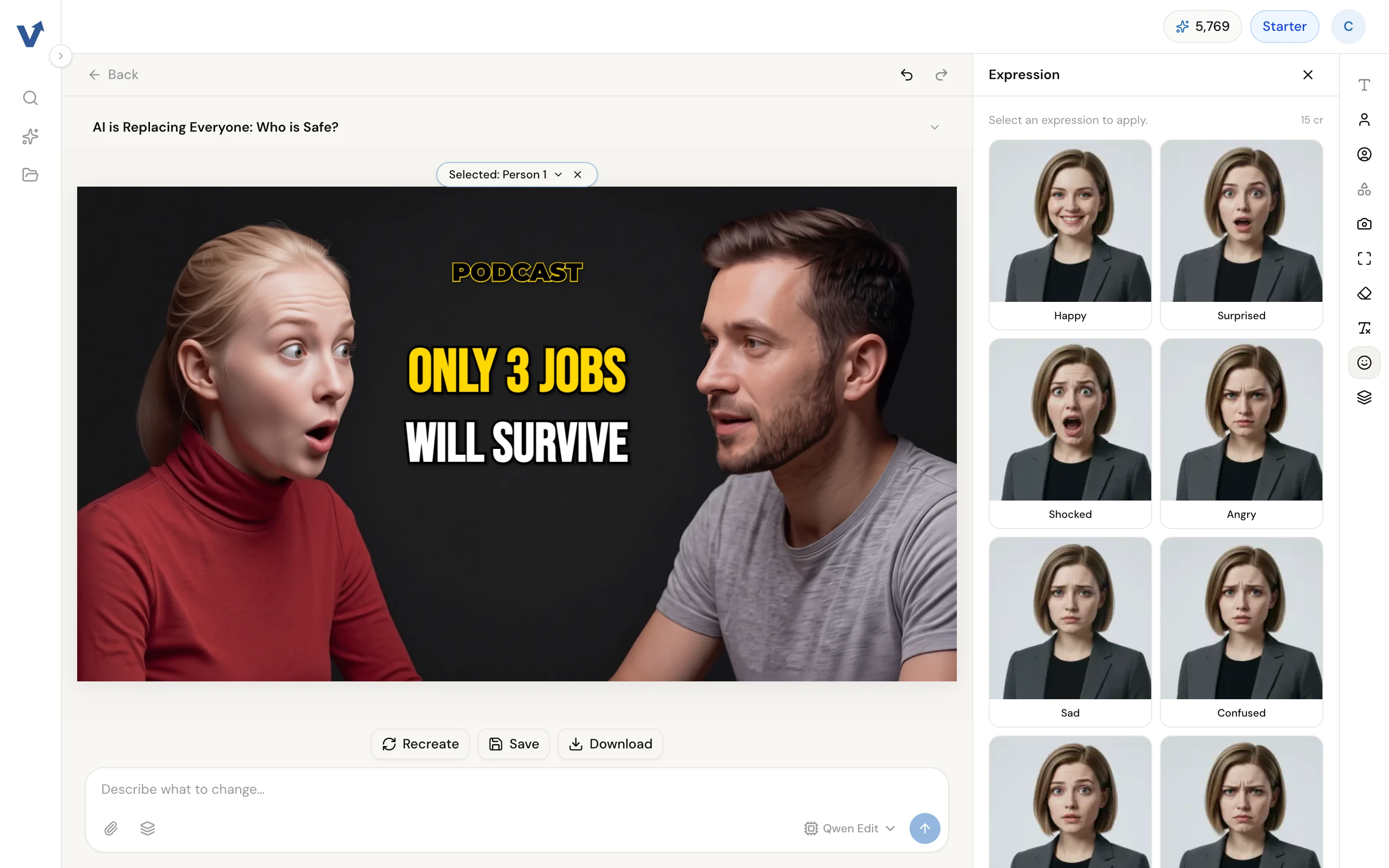
Expression, Surprised, on Person 1 from that same source: wide eyes, raised brows, open mouth. The man is unchanged. Look closely and the whole picture has softened a little, because every pixel of it was re-drawn.
Camera angles move two different things
Seven presets sit behind one button and they split into two behaviours. Eye Level, Side Profile and Three Quarter turn the person you selected and leave the scene's viewpoint alone. That is the Three Quarter edit shown above. High Angle, Low Angle, Bird's Eye and Worm's Eye shift the camera on the whole scene and re-centre the framing on your target, because tilting one person's perspective inside a scene shot from somewhere else produces a picture that does not read.
Expression runs the other way and stays local: fourteen presets, applied to one person's face, with most of the instruction spent on holding everything else still. The phrasing of these prompts is tuned rather than obvious. Words like visible or prominent had to be scrubbed out of them, because the model treats that vocabulary as a crop direction instead of a pose one.
The headline is not one of these layers
Text sits above the picture rather than inside it. A generated thumbnail's headline arrives as a canvas object composited over the image, so retyping it, restyling it or dragging it somewhere else never reaches a model and never spends a credit. The text tool writes font, size, fill, stroke and stacking order directly onto the canvas. Saving stores that layout beside the flattened image, so reopening the thumbnail later does not rebuild the wording and positions from the original plan.
Words baked into the pixels are a different problem, and Remove Text is the tool for those: it takes every detected text box and clears them in a single pass, charged at 5 credits instead of the usual 15 because it exists to clean up leaks the generator caused. The multi-edit panel bills on the same principle. Queue preset edits against several layers at once and the batch costs 15 in total, not 15 apiece.
What each edit costs
| Replace Person, including the face-and-head mode | 15 credits |
| Replace Element | 15 credits |
| Camera Angles, either track | 15 credits |
| Expression | 15 credits |
| Remove Layer | 15 credits |
| Upscale, same price at either scale factor | 10 credits |
| Layers returned by one detection pass, at most; detection itself is never charged | 8 layers |
| Edits running at the same time, free plan | 1 job |
| Pro trial on signup: full Pro access, no card required | 7 days |
| Trial credits granted at signup; unused ones expire when the trial ends | 500 credits |
| Free plan monthly grant, first issued when the trial ends | 125 credits |
| Starter, monthly credits | 2,500 credits |
| Pro monthly credits, which also unlock the premium image models on the create page | 5,500 credits |
| Studio, monthly credits | 15,000 credits |
What this editor does not do
- Every tool re-renders the entire frame. The prompt asks the model to change one layer and leave the rest, and nothing downstream enforces that; the finished image is also re-encoded to WebP on its way to storage, so an untouched region cannot come back byte-identical even in principle. Expect a slight shift in framing and some softening of fine detail.
- Targeting names a position, so a frame holding the same person twice gives it nothing to separate on and both copies change together. Two distinct, well-separated subjects resolve correctly; near-identical ones are the case to avoid.
- Prompt edits run one layer at a time, and they reach their target differently from the presets: the region gets marked on a copy of the image rather than named in words. Writing a prompt against two layers in a single batch is refused outright. Three ways of allowing it were tested (markers drawn on the source, a second image used as a reference map, coordinates written into the prompt) and each degraded quality enough that the path was closed rather than shipped. Preset edits across several layers still batch fine.
- The canvas is fixed at 1280 by 720 and stretches the image to fill it, so a source that is not 16:9 is compressed while you work on it, roughly 4% horizontally for a 1.85:1 image.
- Detection is best-effort and capped at eight layers. Elements below half a percent of the frame are filtered out as noise, overlapping boxes are merged, and a crowded thumbnail can leave something unlisted. Re-running detection on the current image is the recourse.
- The editor opens thumbnails generated in Vwrap. A file made somewhere else has no route in. Attach it in the create page's Reference slot and generate from it instead.
- Tools are typed, and a mismatch dims the button rather than guessing. Replace Element will not act on a person, the camera and expression tools will not act on an element, and a layer that was never detected cannot have any tool pointed at it.
- The preset tools bill identically on every plan, but the editor's prompt box carries a model picker and the premium models on it stay with Pro and Studio. After the trial a free account also runs one job at a time. Credits are the only thing an edit spends; there is no separate charge for the editor itself.